Enrolment

Back to: How to create a course in CBM Learning Portal
The learning objective of this module is to understand the basics of enrolling learners into your course.
It takes approximately 3-5 minutes to complete this module
Step 1
After creating your course, we can enroll learners to start their CBM E Learning journey!
Go back to the dashboard, and click on “Memberships”.

Step 2
You will see all the departments in the membership page. Click on the department you want to add the course to.

Step 3
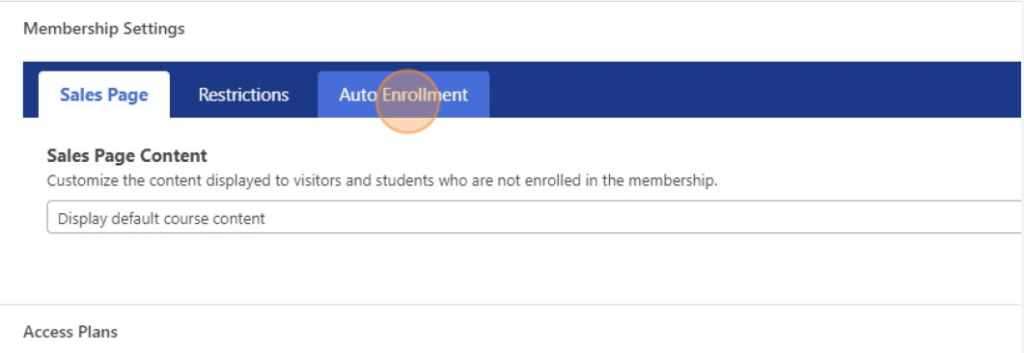
Scroll down and click on the “Auto Enrollment” tab.
Step 4
Click on the “Add Course(s)” bar at the bottom. Select the course you created.

Step 5
Click “Enroll All Members”. This will enroll all the students under selected department to the course automatically.

Now click on the “Save” button on the top right corner.
Congratulations, you have enrolled all the members of the department to your course.
You have reached the end of the micro learning course. Thank you and happy learning!