Add a Quiz into your lesson

Back to: How to create a course in CBM Learning Portal
The learning objective of this module is to create a quiz in your course.
It takes approximately 3-5 minutes to complete this module.
Step 1
In previous module, we learnt how to create new lesson in the course. Now create a new lesson.

Step 2
Double click on the title of the new lesson. Feel free to change the title to “New Quiz”.
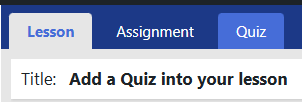
Click on the tab “Quiz” beside the “Lesson” tab. Click on “Create New Quiz”.

Step 3
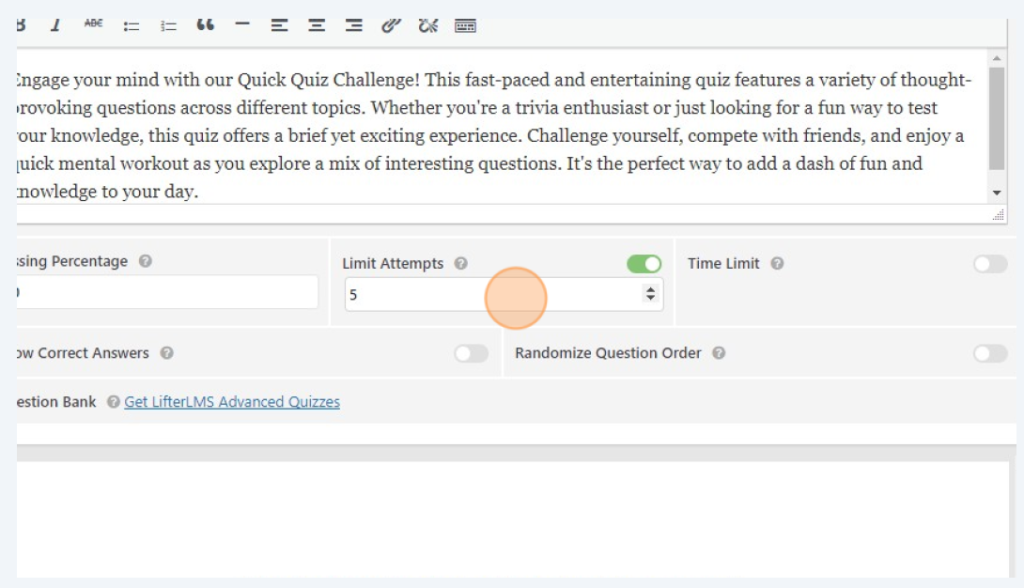
Add description to the quiz. Some useful details are :
1) Amount of time or time limit it takes to complete the quiz.
2) Any prerequisite information they might need.
3) Language of the quiz if not in English.
4) The required marks to pass the quiz.
5) The number of attempts allowed.
Edit/add the number of attempts allowed, Time limit, randomize of the order of questions appearing for each attempt etc.
Step 4
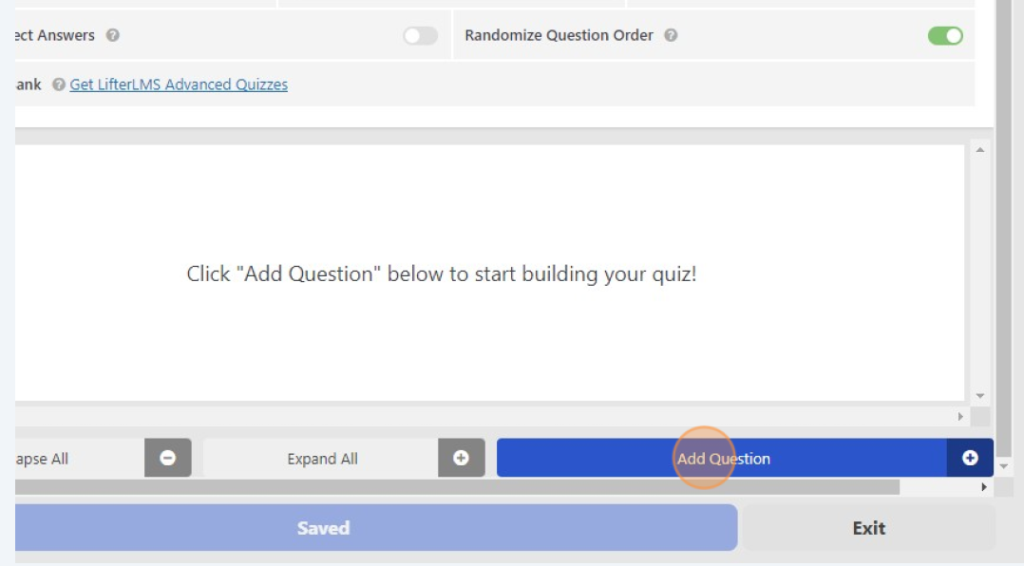
Click on “Add Question”.
Step 6
Choose the type of question. (multiple choice, true or false etc)
Type the question in the box as shown.

Step 7
Type in the all answer choices and select the correct answer as shown.
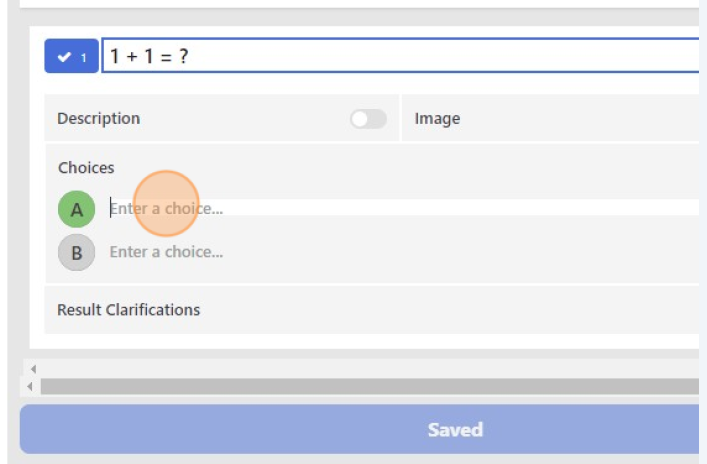
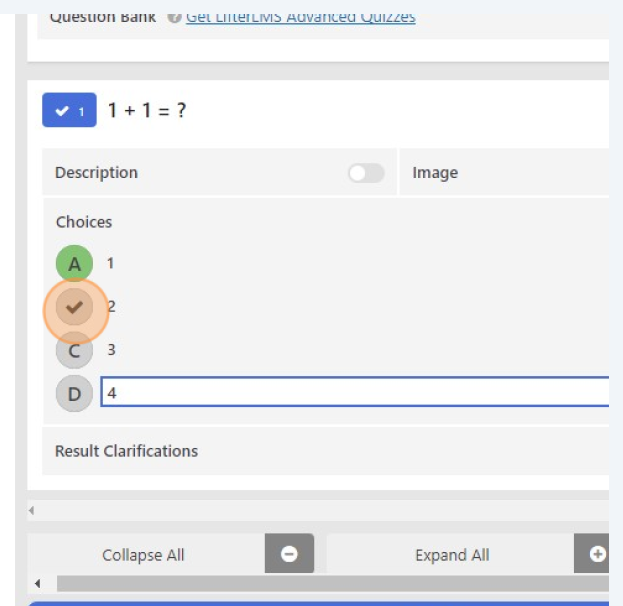
Click on add choices to add new questions and answers.
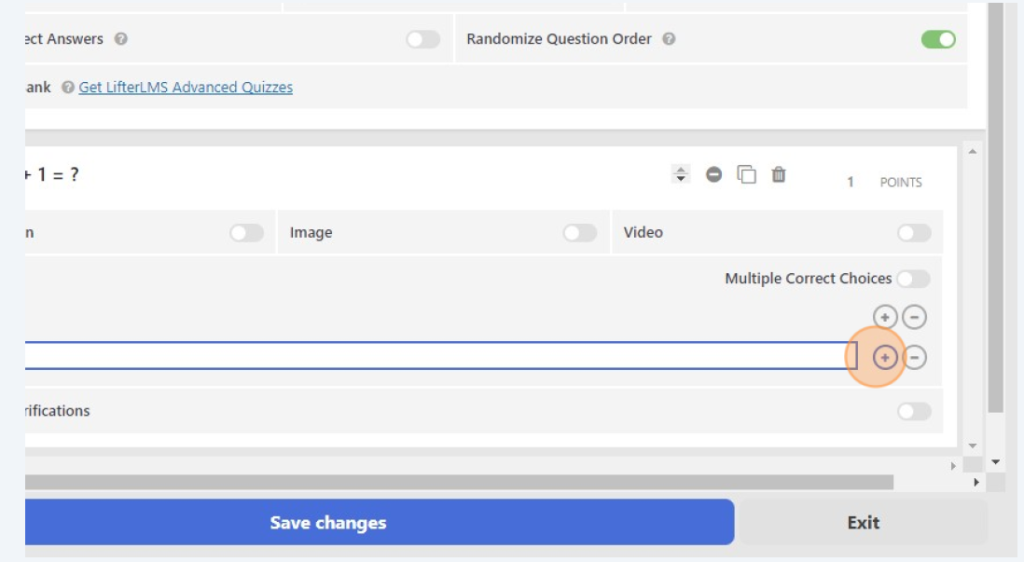
Once you are done, do not forget to click on the “save” button on the top right hand corner.
Finally, click on “save changes” button to go back to previous page.
Congratulations, you have added a quiz to your lesson!
In the next module, we will learn how to enroll learners in your course.